What this manual covers
This is a Windows desktop walkthrough from installation and login through charts, order entry, modification, closure, and history. It uses MT5 as the main reference and notes important MT4 differences. Server names, symbols, contract sizes, and execution rules are provider-specific and must be checked against the user's own broker documentation.
Practice on demo until you can open, modify, and close orders without confusion. Never reuse login or server details shown in another person's screenshot.
1. Download and install safely
- Download from the official website of your account provider or the official MetaTrader site.
- Verify the domain. Avoid installers from advertisements, chat groups, or files sent by strangers.
- Run the installer, read the publisher name, and complete the displayed steps.
- Open About and verify the platform and company identity.
- Update the operating system and platform before connecting an account.
For mobile, install MetaTrader 5 or 4 from the official app store and add an account through Manage Accounts. Mobile navigation differs from desktop, so this manual does not substitute mobile screenshots for Windows instructions.
2. Prepare the account details
Obtain the login number, trading password, and exact server name from the provider. Demo and live usually use different servers. A read-only investor password may display the account but cannot authorize trading. Never expose credentials in screenshots.
3. Log in to MT5
- Open File.
- Select Login to Trade Account.
- Enter login and password.
- Select the server matching the account email.
- Press OK and wait for connection.
Confirm the account in Navigator, moving quotes in Market Watch, and connection status at the lower right. For No connection or Invalid account, verify internet, credentials, and server before doing anything else.
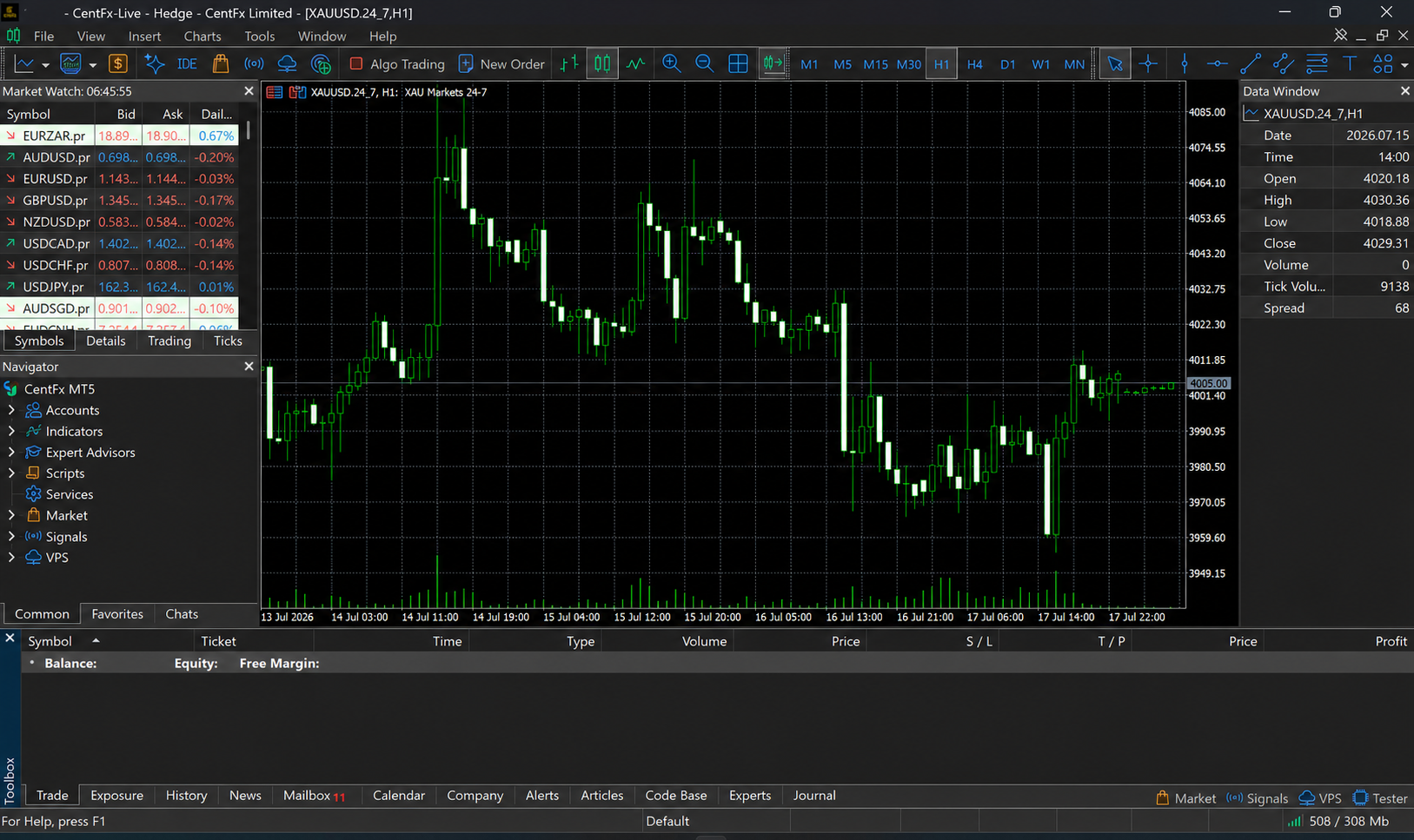
4. Learn the five workspace areas
- Toolbar: chart modes, timeframes, drawing tools, New Order, and Algo Trading.
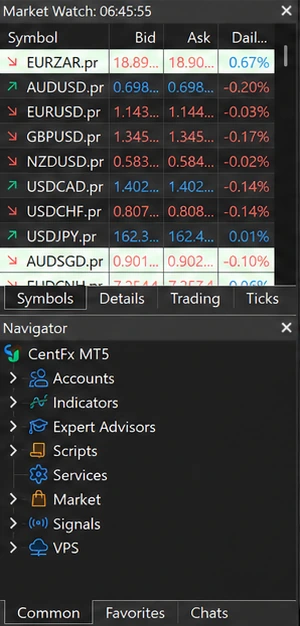
- Market Watch: available symbols and bid/ask quotes; open with Ctrl+M.
- Navigator: accounts, indicators, Expert Advisors, and scripts; open with Ctrl+N.
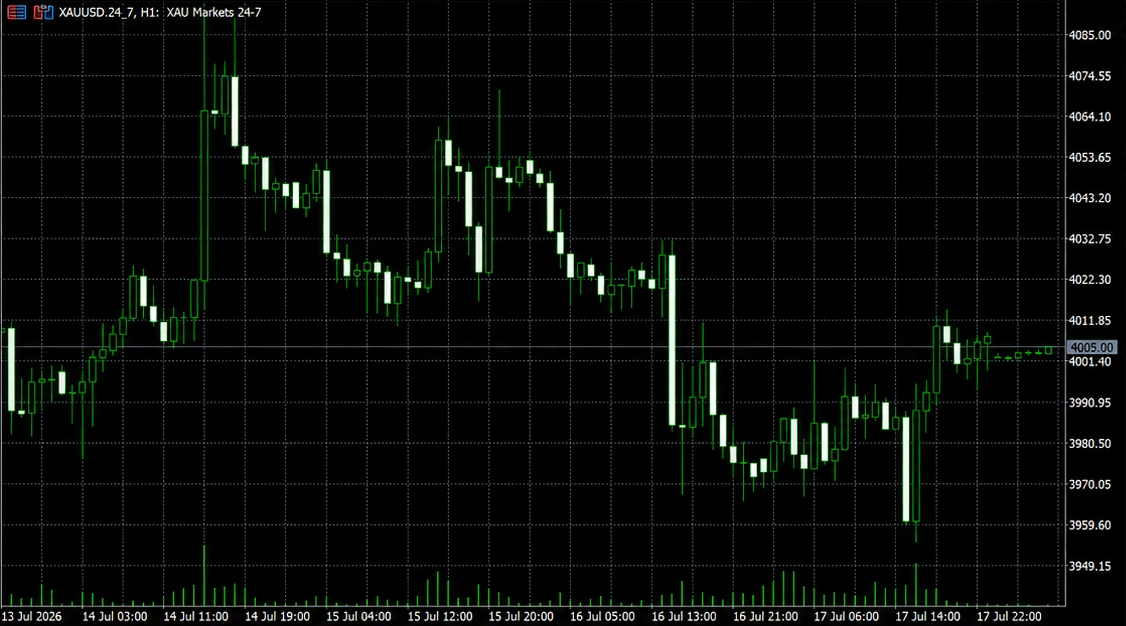
- Chart: provider price data for one symbol and timeframe.
- Toolbox: Trade, History, Journal, and Experts; open with Ctrl+T. MT4 commonly calls this Terminal.
Algo Trading in MT5 or AutoTrading in MT4 controls automated programs. It is not required for manual order entry.
Toolbar

Market Watch and Navigator
Chart
Toolbox

5. Add a symbol and open its chart
- Open Market Watch with Ctrl+M.
- Right-click and choose Symbols, or press Ctrl+U.
- Search for a pair such as EURUSD; providers may add a prefix or suffix.
- Select the symbol and press Show.
- Right-click it in Market Watch and select Chart Window.
Before trading, open Specification and read contract size, digits, tick size/value, minimum volume, volume step, stop level, swap, and trading hours.
6. Configure chart and timeframe
Choose bar, candlestick, or line mode. Use plus/minus to zoom, Auto Scroll to follow current price, and Chart Shift for space on the right. Right-click the chart and choose Properties, or press F8, to change colors. A timeframe groups observations; it does not automatically make analysis more accurate.
7. Add, edit, and remove an indicator
- Open Navigator with Ctrl+N.
- Expand Indicators.
- Drag an indicator onto the chart.
- Set period, price source, style, and levels, then press OK.
- Press Ctrl+I to edit Properties or Delete it.
Indicators calculate from market data; they are not orders. Test third-party files on demo and verify their source.
8. Open New Order
Press F9, use the Toolbar button, right-click a Market Watch symbol, or choose Trading > New Order on the chart. Verify symbol, type, volume, stop loss, take profit, and optional comment. Volume is contract size, not the amount at risk.
9. Place a market order
- Verify the symbol.
- Select Market Execution.
- Enter volume calculated from risk and stop distance.
- Add stop loss and take profit if supported.
- Check bid, ask, and spread.
- Click Sell by Market or Buy by Market once.
- Read the result and verify the ticket in Toolbox > Trade.
A buy normally opens at ask and closes at bid; a sell does the reverse. Execution can differ from the displayed price.
Keep One Click Trading disabled while learning. It can submit immediately without a review dialog.
10. Select the correct pending order
- Buy Limit: request a buy below current price.
- Sell Limit: request a sell above current price.
- Buy Stop: trigger above current price.
- Sell Stop: trigger below current price.
- Stop Limit: after its stop trigger, place a limit at the specified level; available in MT5 and subject to server rules.
Choose New Order > Pending Order, then set type, volume, price, stop, target, and expiration. A successfully placed order does not guarantee a fill, and a triggered stop can slip.
11. Modify or delete a pending order
Open Toolbox > Trade, double-click the pending order, and choose Modify or Delete. Change price, stops, target, or expiration, confirm once, and verify the updated row. If modification is unavailable, read the error and check minimum distance, hours, and order type.
12. Add or change stop loss and take profit
Double-click a position in Toolbox > Trade and choose Modify Position. For a buy, stop is normally below current price and target above; reverse this for a sell. Verify the resulting values. A stop limits risk but cannot guarantee an exit price through gaps or thin liquidity.
13. Close all or part of a position
Double-click the position, verify symbol and ticket, enter a smaller valid volume for partial closure if supported, then use Close Position. Confirm the position changed and inspect History. Do not use a new opposing Buy or Sell as a substitute for Close until you understand the account's position system.
14. Netting versus hedging
Netting maintains one net position per symbol; an opposing deal can reduce, close, or reverse it. Hedging can maintain several positions in the same symbol, including opposing ones. Close by selecting the intended position or ticket. MT5 supports both systems; MT4 commonly treats trades as separate orders.
15. Understand trailing stop
Right-click a desktop position and select Trailing Stop. The standard trailing process runs in the client terminal, while the latest successfully placed stop loss is generally held by the server. If the platform, computer, or connection stops, the trail may stop moving.
16. Review history and reports
Open Ctrl+T > History, right-click, and choose a period. Inspect orders, deals, positions, commission, swap, and profit; export a report if required. Balance excludes floating P/L, equity includes it, margin is reserved collateral, and free margin is the remaining buffer.
17. Troubleshoot common errors
- No connection: internet, server, firewall/VPN, and system time.
- Invalid account: login, trading password, capitalization, and demo/live server.
- Market closed or Trade disabled: hours, holiday, symbol, and account permission.
- Invalid volume: minimum, maximum, and volume step in Specification.
- Invalid stops: direction, decimals, stops level, and freeze level.
- Not enough money: volume or margin is too high for free margin; do not solve this by removing the stop.
18. Demo competency exercise
- Confirm the demo account number.
- Add EURUSD and open an H1 candlestick chart.
- Add, edit, and remove one moving average.
- Place minimum-volume market order with stop and target.
- Modify the stop and partially close if supported.
- Place, modify, and delete a Buy Limit.
- Place and cancel a Buy Stop.
- Review ticket, deals, costs, and result in History.
- Observe the difference between a desktop trailing stop and server-side stop without risking real funds.
You are ready to continue only when you can complete the workflow without confusing symbol, server, volume, or direction, and can explain market, limit, stop, position, and deal.
Lesson audience
Page views by visitors and members
- Total
- —
- Today
- —
- Total
- —
- Today
- —
Trading Forex and CFDs carries a high level of risk and may not be suitable for all investors. You could lose all of your invested capital. Please study carefully before investing. Content on this site is for education only and does not constitute investment advice.